

Quick Summary
- Private calls (Unknown Caller, No Caller ID) are hidden numbers that are often blocked by phone settings or carrier spam filters, usually for security and spam prevention.
- On Android, you can unblock private calls by going to Phone Settings → Blocked Numbers and disabling options like "Block Unknown Numbers" or "Block Private Numbers."
- Samsung users may also need to turn off Smart Call or Caller ID & Spam Protection features to fully allow hidden or unknown calls.
- On iPhone, private calls are managed in Settings → Phone → Silence Unknown Callers; this must be turned off to allow these calls to ring normally.
- Even after unblocking, private callers remain hidden. Your phone will ring, but the actual number or identity will not be revealed.
What Are Private Calls?
A private call (also called a hidden or unknown number) is when the caller hides their phone number using network settings or codes like *67. These calls are often blocked automatically if your phone has spam protection or call filtering enabled. If you also want to verify who called before responding, read our guide to identify and call back private numbers.
How to Unblock Private Calls on Android? (General)
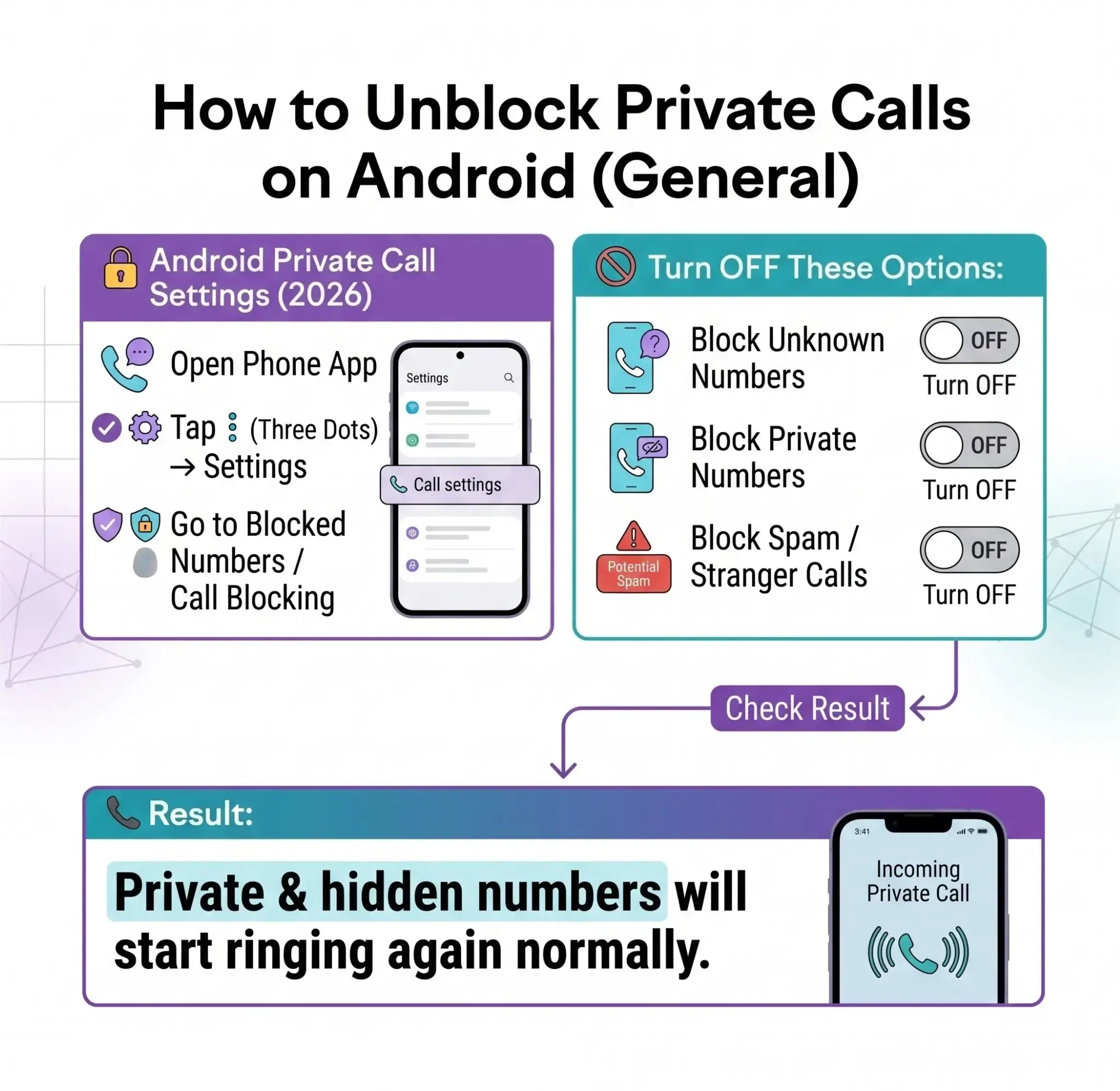
Most Android phones (Samsung, Xiaomi, Infinix, Oppo, Pixel) allow you to block or unblock private numbers in the Phone app.
Step-by-step method:
- Open Phone app
- Tap three dots (⋮) in the top corner
- Go to Settings
- Tap Blocked Numbers / Call Blocking
- Turn OFF:
- "Block Unknown Numbers"
- "Block Private Numbers"
Once disabled, private or hidden numbers will start ringing again.
On some Android devices, this option may appear as:
- "Block unknown callers."
- "Block hidden numbers."
According to Android system settings, this toggle directly controls whether private calls are allowed or rejected. For more background on how hidden caller IDs behave across networks, see private number calls explained.
How to Unblock Private Calls on Samsung (2026)?
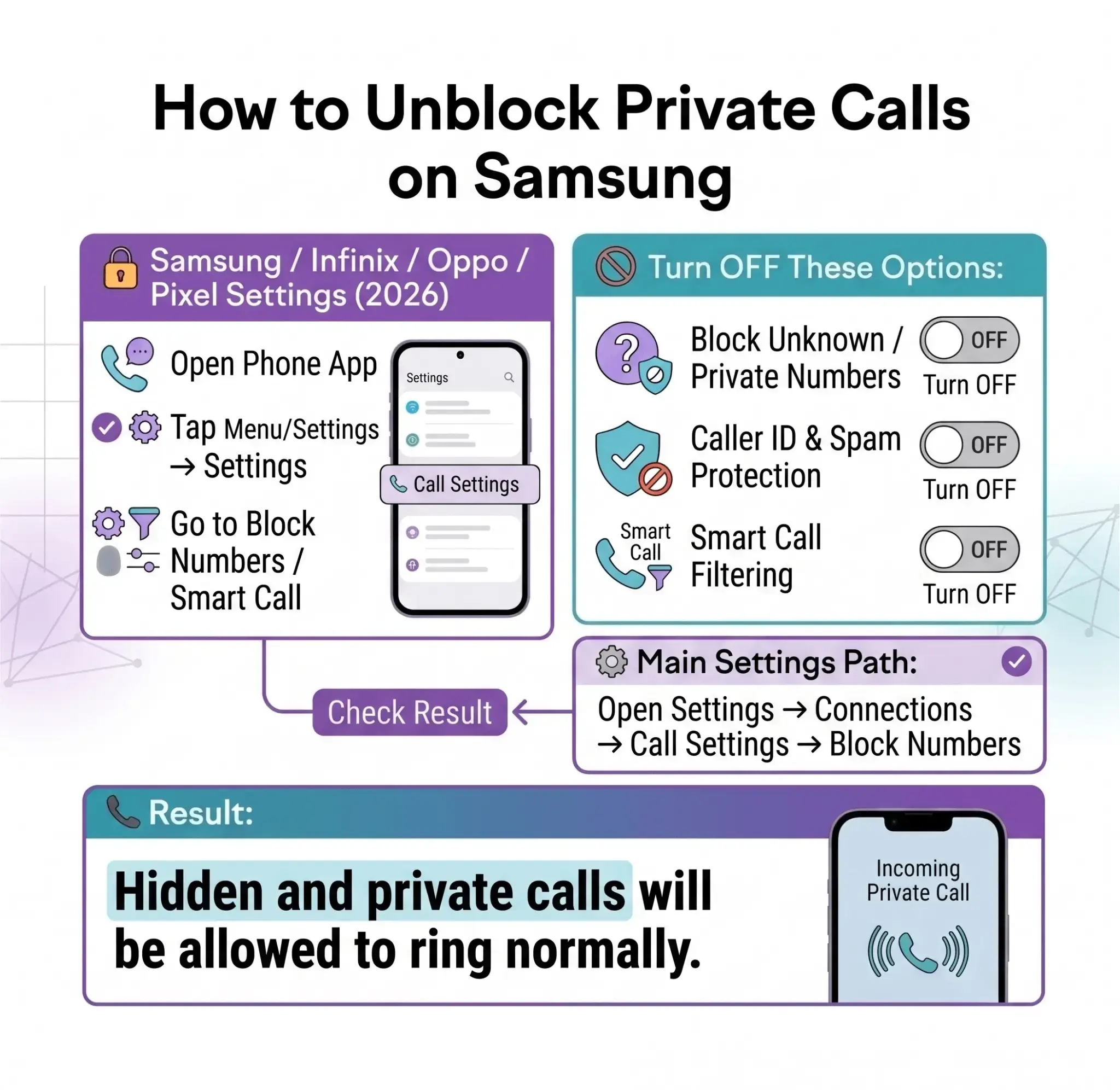
Samsung phones include extra spam protection features:
Steps:
- Open Phone app
- Tap Settings
- Go to Block Numbers
- Turn OFF:
- Block Unknown/Private Numbers
- Caller ID & Spam Protection (optional)
Some Samsung devices also label it under Smart Call settings.
How to Unblock Private Calls on iPhone (2026)?
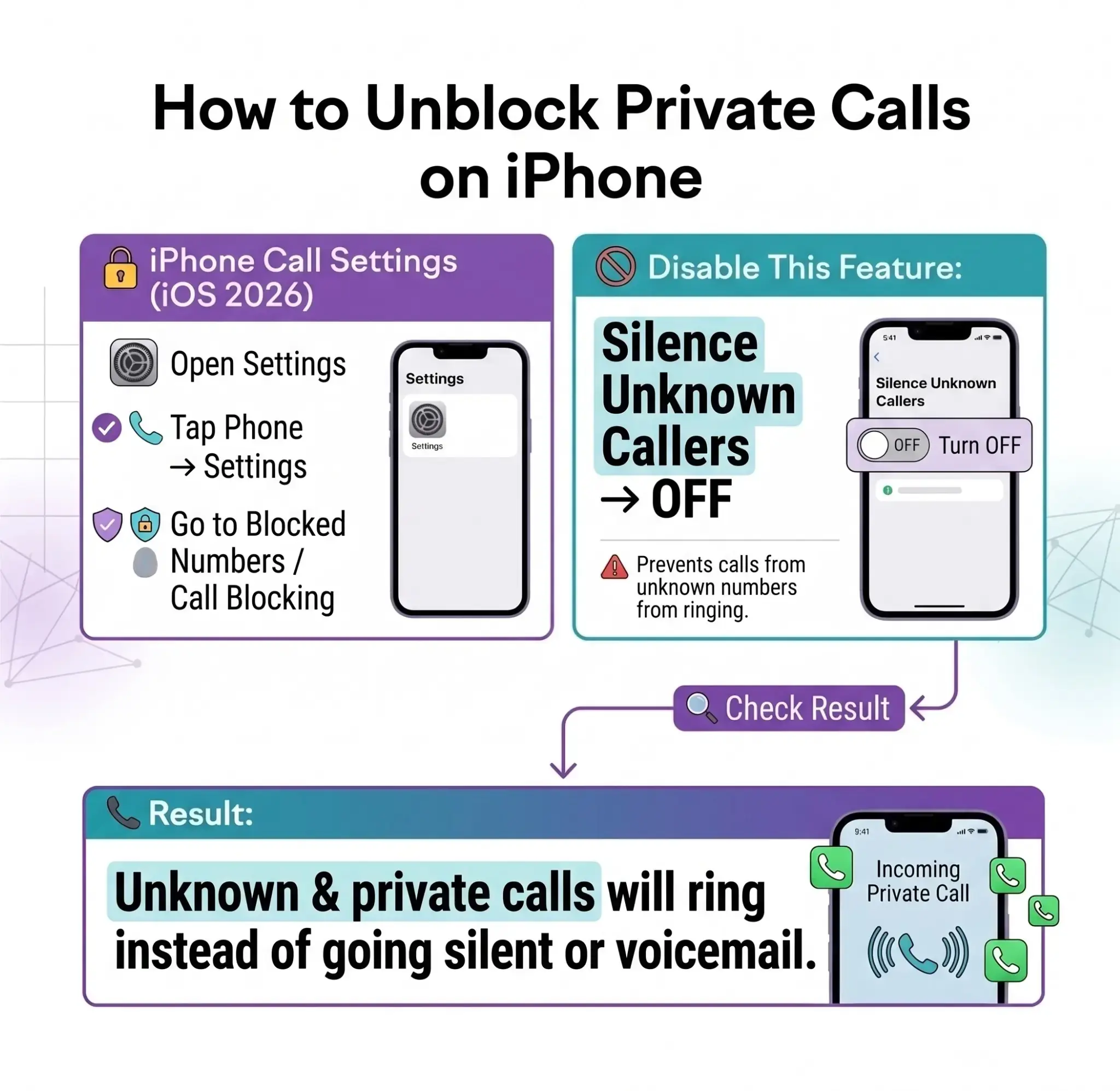
Apple does not specifically "block private numbers" the same way Android does, but it filters unknown callers.
Steps:
- Open Settings
- Tap Phone
- Turn OFF:
- Silence Unknown Callers
When this is ON, unknown and private calls are automatically silenced or sent to voicemail. Service teams that depend on fast callbacks can combine this with missed call text back workflows so no lead goes unanswered.
Important Things to Know
- You cannot reveal the actual number of private callers
- Unblocking only allows the call to ring - it does not unmask identity
- Some carriers may still block private calls at the network level
- Important calls from banks or hospitals sometimes appear as private numbers
How to Unblock Private Calls on Huawei And Xiaomi (2026)?
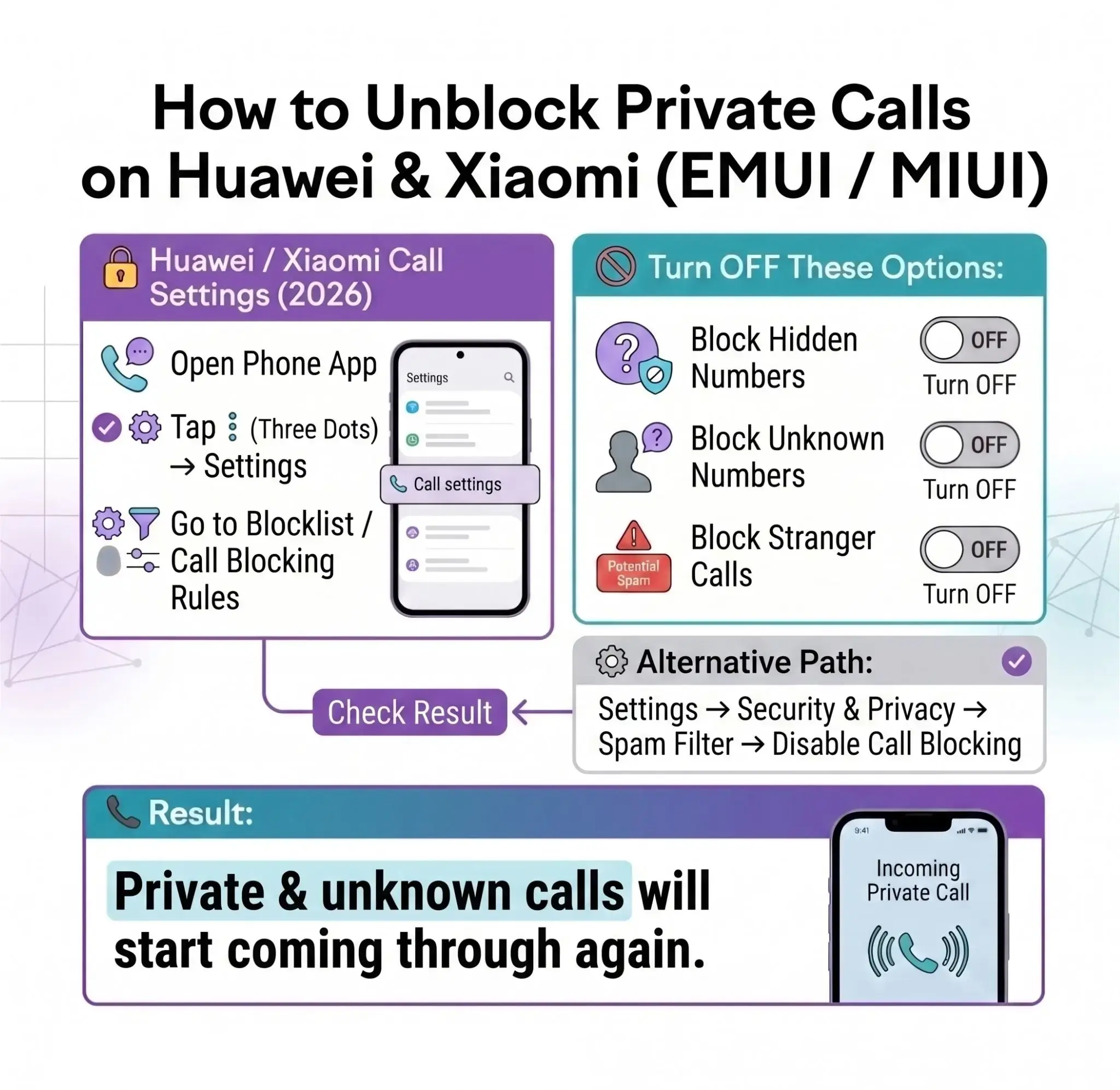
On Huawei phones (EMUI / HarmonyOS), private or unknown calls are usually blocked through the Phone app settings or spam filters. Here's how to unblock them:
Step-by-Step Method
- Open the Phone app
- Tap the three dots (⋮) or Settings
- Go to Blocked / Filtered Calls or Block Rules
- Tap Call Blocking Rules
- Turn OFF the following options:
- Block Unknown Numbers
- Block Hidden Numbers
- Block Stranger Calls
Alternative Method (Spam Filter Settings)
- Open Settings
- Go to Security & Privacy
- Tap Spam Filter
- Disable call blocking or allow unknown numbers
Important Notes
- Some Huawei devices may label it as "Harassment Filter."
- After turning it off, private calls will start ringing again
- You still won't see the caller's number if it's hidden - it will only allow the call to come through
Private Calls vs Unknown Calls (Common Confusion)
| Type | Meaning |
|---|---|
| Private Number | The caller hides the number intentionally |
| Unknown Number | Number not saved in contacts |
| Spam Call | Marked by the system or the carrier |
Many users think they are the same, but Android treats them slightly differently depending on settings. Businesses handling high inbound volume can review AI phone answering services to handle unknown/private calls more consistently.
Why People Enable Private Numbers
- Missed important business calls
- Accidentally enabled spam filter
- Need calls from services using hidden numbers
- Too strict call blocking settings
Takeaway
Fixing blocked private calls is simple once you know where to find the setting. On most devices, it's just a matter of turning off "Block unknown/private numbers" or disabling "Silence unknown callers."
If private calls are still not coming through after changes, your mobile carrier may be blocking them at the network level. For home service teams, this works best alongside a dedicated answering service strategy.